How to Draft Screenshot Alt Text With AI and Human Review
Draft screenshot alt text with AI, then review every line against the image — accurate, accessible descriptions without invented details.
Every tutorial screenshot needs alt text, and each one takes a few minutes to describe well. Across a dozen images in one article, the job quietly eats an afternoon. AI tools that read images promise a shortcut: upload the screenshot, get a description, paste it in. The shortcut works — but only halfway: image-reading models are good at layout and weak at exact figures, and will invent a detail rather than admit they cannot read one. This guide shows how to draft screenshot alt text with AI and review it against the image, so what you publish is accurate.
What useful alt text needs
Alt text is the text alternative a screen reader reads out in place of an image. It is also what a browser shows when the image fails to load. Its job is not to describe everything visible in the picture — it is to pass on the information the reader needs from the image in the place where it appears, nothing more, and nothing invented.
The W3C Web Accessibility Initiative's Images Tutorial sorts images by what they do on the page:
- Informative. It carries information the reader needs, such as a settings panel or a before-and-after comparison; the alt text should convey it concisely.
- Decorative. It adds styling and carries no information the reader needs; it gets an empty alt attribute,
alt="", so screen readers skip it. - Functional. It acts as a control or a link; the alt text should say what the control does or where the link goes, not what the icon looks like.
- Complex. It holds detailed information, such as a chart, that one sentence cannot carry; it gets a short alt text plus a fuller description nearby or in a data table.
The same screenshot can play different roles: a formatting-tool screenshot is informative inside a tutorial about that tool, and decorative on a landing page where the copy already explains the feature. If you are unsure, the W3C alt decision tree asks what the image is for, and what a reader would miss without it.
Once the role is clear, a few rules keep the text useful. Describe the information, not the pixels: say what the screenshot shows the reader how to do. Keep it to one or two sentences; extra detail belongs in a caption or a table beside it. Do not start with "image of" or "screenshot of" — screen readers already announce that an image is present. Do not stuff keywords: one belongs there only if it accurately describes what the image shows. Never infer what is not visible: a chart of monthly totals can show that one month is highest, not why. And numbers, names, and labels must be exact — a wrong figure is worse than a vague one, because the listener has no image to check it against. This is the rule AI drafts break most often, and why the review step is not optional.
Generate a draft with AI
Most general-purpose AI assistants — ChatGPT, Claude, Gemini, and Copilot — accept image uploads and can describe what they see. The quality of the draft depends less on which one you pick than on what you give it alongside the image, because an AI tool that only sees pixels has to guess the purpose, and you already know it. Before uploading anything, check what you are allowed to share: do not upload screenshots with confidential material, customer data, credentials, or identifiable people unless your policy allows it. A screenshot of a public tool or your own document is usually fine; a screenshot of a customer's account is not.
Upload the exact image you intend to publish, and give the tool four pieces of context: the image's purpose (finish the sentence "This image is there to…"), the surrounding text (the nearby heading and paragraph, so the draft uses the article's terms), verified values (type out figures or labels that matter — the best way to stop the AI misreading a number), and whether the image is linked and where it goes (a linked screenshot is functional, so its alt text should describe the destination).
Then use a prompt that asks for a classification first and a draft second, with uncertainties kept separate:
Draft alt text for the attached image.

Purpose: [what the image helps the reader understand or do]
Surrounding text: [nearby heading and paragraph]
Verified values or labels: [values you have checked, or "none"]

First, say whether the image is informative, decorative, functional, or complex. Then give one concise alt text for an informative or functional image, or an empty alt for a decorative one. Describe only the information that matters for this purpose. Do not invent details, add promotional language, or insert SEO keywords. List anything you cannot read clearly as an uncertainty, separate from the proposed alt text.
Asking for the classification first forces the draft to follow from the image's role. Asking for uncertainties separately makes the model less likely to guess to fill a gap. If the tool cannot inspect the attachment at all — some accept an upload but cannot read it — stop there: a draft written from a filename or a guess is worse than no draft. Expect the first draft to be roughly right and specifically wrong — the usual pattern, as the example below shows.
Correct visual errors: a worked example
The review step is where an AI draft becomes publishable — here is the whole process on one concrete screenshot.
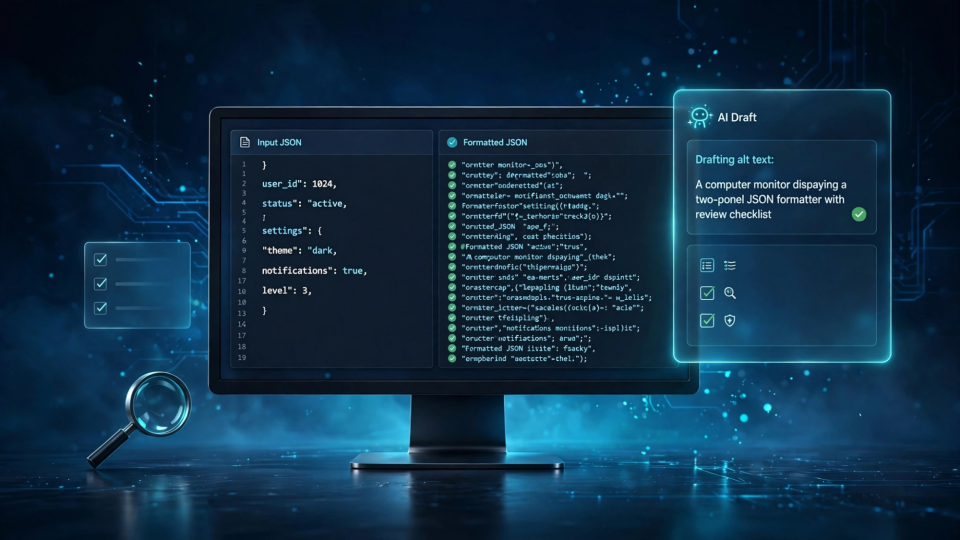
The screenshot. I used a screenshot of a browser-based JSON formatter tool. What is actually visible: a two-panel layout. The left panel, headed "Input", holds six lines of unformatted JSON for a user record: name, email, city, signup date, plan, and a nested address. The right panel, headed "Formatted output", shows the same data as indented, readable JSON. Above the right panel, a green badge reads "Valid JSON". Two buttons sit between the panels: "Format" and "Copy".
The AI draft. I uploaded that screenshot with the prompt above, giving the purpose ("show the reader the formatted result and the validation badge") and the verified values (six top-level fields, badge text "Valid JSON"). The draft was:
"A JSON formatter tool showing unformatted code on the left and formatted JSON on the right. The output panel displays a user record with five fields including name, email, and city, and a green badge confirms the JSON is valid with no errors found."
That draft reads smoothly, and it is wrong in three ways. First, it says five fields when the record has six — the nested address object made the model miscount. Second, it claims the badge says there are "no errors found"; the badge only reads "Valid JSON". Third, it drops the two buttons, which the reader needs to reproduce the step. A screen-reader user hearing this draft would take away a wrong count, a claim the screenshot never makes, and no mention of the tutorial's controls.
The corrected version. After comparing the draft with the image line by line, the alt text I published was:
"JSON formatter showing six lines of unformatted user-record JSON on the left and the same data as indented, readable JSON on the right, with a green 'Valid JSON' badge above the output and Format and Copy buttons between the panels."
Every fact in it can be checked against the screenshot: the count, the badge text in quotes, the two button labels. Nothing is added that the image does not show. It is longer than the draft, but still one sentence — and the sentence a listener needs.
Check every draft against this list, in order — the most common errors come first:
| Check | What goes wrong | How to catch it |
|---|---|---|
| Numbers and counts | Wrong totals, misread figures, invented values | Count each figure yourself and compare it with the draft |
| Names and labels | Misspelled button labels, wrong field names | Read every label and match it word for word |
| Cause and judgement | "Sales rose because of the campaign" from a totals chart | Delete claims the image alone cannot support |
Numbers fail most often because image models read layout well and digits poorly — a "6" becomes a "5", a total gets rounded, a date shifts by a year. Charts need one extra decision: a short alt text cannot carry a full data table, so give the chart's message in the alt text — "Bar chart of monthly enquiries in 2026, highest in February at 21" — and put the full figures in a table beside the image. That split is what the W3C recommends for complex images.
Put the finished alt text in the right place
A reviewed draft is only useful once attached to the image. In a website CMS or a blogging platform, paste it into the image's alt text field — not the caption, the title field, or the file name. The caption is visible text for every reader; the alt text is the alternative for those who cannot see the image. In Word or PowerPoint, right-click the image and choose the alt text option; in Google Docs or Slides, use the image options menu; in Canva, the alternative text field sits under More. The click paths change, but the principle does not: the description belongs in the alt field.
For a whole article, work through the images one at a time and do not bulk-accept drafts: classify each image, generate all the drafts, review each draft against its image with the checklist above, then paste the reviewed text into the alt field. Review in a separate pass: once a draft is pasted it looks finished, and finished-looking text rarely gets re-read. Keep a short style note for your site — one sentence per image, exact figures, no invented claims — so drafts stay consistent.
Frequently asked questions
Can AI write alt text on its own?
No — not to a standard you should publish. AI can produce a useful first draft quickly, but it misreads figures, miscounts items, and invents details it cannot see. A human review against the image is required; it is what makes the alt text trustworthy.
How long should alt text be?
There is no universal limit. One or two sentences covers most screenshots, though some tools cap the field (Canva allows 250 characters). If the description needs more, the image is probably complex — keep the alt text short and put the detail in a caption or a table beside it.
Should alt text include SEO keywords?
Only if the keyword is also an accurate description of what the image shows. Alt text exists for people who cannot see the image, not for ranking, and keyword stuffing makes the description worse for the only audience that matters.
What if the AI tool cannot read my screenshot?
Write the description yourself from the image in front of you. Some tools accept an upload without inspecting it, and a draft based on a filename or a guess will invent the contents. A short human description beats a fluent fabrication.
Conclusion
AI makes drafting screenshot alt text fast, and human review makes it true. Classify each image by its purpose, give the AI the context only you know, then check every number, label, and claim against the image before you publish. The worked example shows the pattern: a smooth draft, three errors, and one corrected sentence a listener can trust. Keep that habit and your alt text stays accurate. For the same discipline applied to text, see our guides to fact-checking AI answers before publishing and spotting AI hallucinations in technical answers.