Privacy Checklist Before Pasting Information Into AI Chat
Run this short privacy checklist before pasting anything into an AI chatbot — what to leave out, how to redact the rest, and what the service keeps.
An AI chatbot feels like a private conversation. You type a question, it answers, and the exchange sits in a tidy sidebar that looks like it belongs to you alone. The reality is less private: what you paste can be stored on someone else's servers, reviewed by people you will never meet, and — depending on the service and its settings — used to train future models. You do not need to stop using AI chat. You need sixty seconds of checking before you press Enter.
What not to paste
The simplest rule: if information would cause harm in a stranger's hands, keep it out of the chat window. AI chat is a text box connected to a remote service, not a private notebook.
Start with secrets — anything that gives direct access to something else. Passwords, passkeys, one-time codes, recovery codes, API keys, private keys, and session tokens all belong here, even when they are old or already changed. Never paste a secret to ask the AI to "check if this looks right." If the model needs to see the shape of a secret, show it a clearly fictional stand-in, for example sk-EXAMPLE-0000-0000, never a real key.
Next, identity documents and numbers: national identity numbers, passport and driving licence numbers, tax identifiers, and photos of ID cards. The same goes for combinations that identify a person even when no single item looks sensitive — a full name with a date of birth, an employer, and a city is often enough to single someone out. Health information belongs here too: diagnoses, prescriptions, test results, and insurance details, as does anything about a legal case or a confidential work matter.
Financial details deserve their own warning. Bank account and card numbers, salary figures, invoices, contracts, and tax returns should stay out of consumer AI chat. Even a partial account number combined with a name and a bank can help a scammer, and a contract often contains names, addresses, and terms that belong to more than one party.
Finally, other people's data is not yours to share. A support ticket, a colleague's email, or a customer's message all contain someone else's private information. Before pasting anything that mentions another person, ask whether they would be comfortable with their details in a chat log on a third-party server. If not, redact it or do not paste it.
The redaction workflow
Redaction means removing or replacing sensitive details before the text leaves your hands. It takes about a minute and leaves the AI with everything it needs.
Step 1: Decide whether AI is needed at all. A general explanation can often be answered from the model's own knowledge without any of your data. If the task genuinely needs your text, continue.
Step 2: Copy the text to a scratch note, not into the chat. It gives you a place to clean the text without the risk of an accidental send.
Step 3: Replace names with roles. Swap every real name for a role or a placeholder: [CUSTOMER], [MANAGER], [EMPLOYEE A]. Do the same for company names and street addresses when the answer does not depend on them. Roles keep the structure of the problem intact while removing the identifiers.
Step 4: Round the numbers and generalise the dates. Replace exact figures with ranges ("around $1,000–$1,500") and exact dates with relative ones ("last Tuesday").
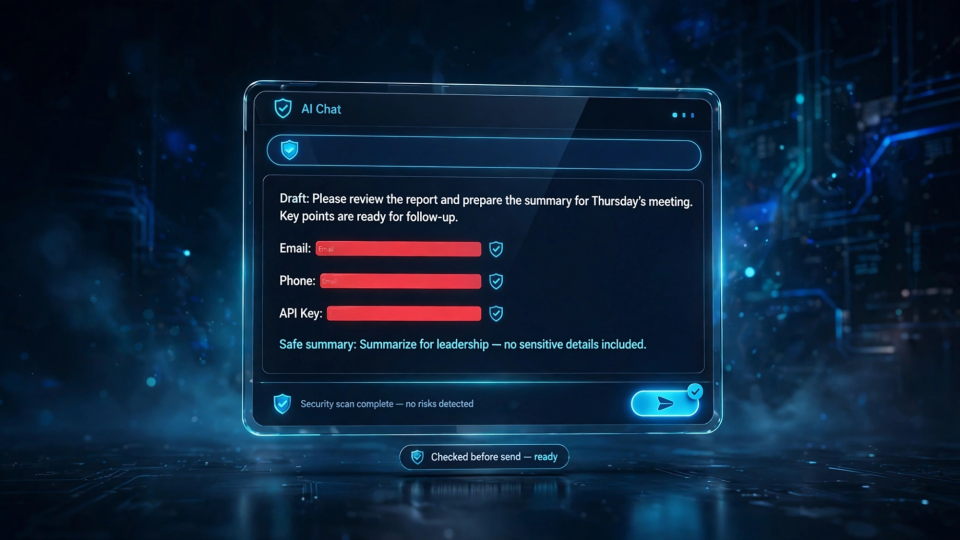
Step 5: Run the text through a redactor. Automated pattern-matching catches the identifiers people most often miss. FBSubNet's Sensitive Data Redactor masks likely email addresses, phone-like numbers, and IPv4 addresses in pasted text, replacing each match with a [REDACTED] marker. It is a useful safety net — but a net, not a guarantee, as the example below shows.
Step 6: Read the cleaned text once, out loud if you can. Ask one question: would I be comfortable with a stranger reading this exact text? If not, go back to step 3.
Worked example: cleaning a support ticket
Suppose you want help drafting a reply to a customer whose login keeps failing. The ticket below is entirely invented:
Hi, I'm Jane Doe (jane.doe@example.com, +1 555-010-0142). Our server at 203.0.113.45 keeps rejecting the API key ak_live_4f8a2cEXAMPLE whenever I try to sign in from the office. Can someone reset it before Friday?
Pasted as it stands, you have disclosed a name, a contact email, a phone number, a server address, and a live credential format — far more than the AI needs to draft a reply. Running the text through the Sensitive Data Redactor replaces the pattern matches with markers:
Hi, I'm Jane Doe ([REDACTED], [REDACTED]). Our server at [REDACTED] keeps rejecting the API key ak_live_4f8a2cEXAMPLE whenever I try to sign in from the office. Can someone reset it before Friday?
The email, phone number, and IP address are masked, because they follow patterns a regular expression can recognise. The name and the API key are untouched — the tool only considers email, phone-like, and IPv4 patterns, and will not remove names or credit-card numbers. Automated redaction is a first pass, not a finished job.
The final step is manual. Replace the name with a role and the key with a placeholder:
Hi, I'm [CUSTOMER] ([REDACTED], [REDACTED]). Our server at [REDACTED] keeps rejecting the API key [API_KEY] whenever I try to sign in from the office. Can someone reset it before Friday?
The AI can still draft a helpful reply — it knows there is a customer, a server, a rejected credential, and a deadline — but nothing identifies a person or exposes a secret. The task survives; the identifiers do not.
Where redaction can be incomplete
Pattern-based tools only catch what follows a recognisable pattern. Names, API keys, passwords, and card numbers usually do not, so they sail through untouched. Stop at the automated step and you keep the dangerous identifiers.
Context is the second gap. A prompt can identify someone without naming them at all: a rare job title plus a city plus an employer can single out a person as surely as a name. If three ordinary facts together point to one person, generalise at least one of them.
Attachments and hidden data are the third gap. A document carries more than its visible text: tracked changes, hidden spreadsheet columns, email headers, and photo metadata can all contain details you meant to exclude. Screenshots often still show a username in a corner or another window in the background — crop tightly and check the edges before uploading.
Finally, the AI's answer can leak what you removed. If you ask the model to "fill in the redacted parts," the cleaned prompt is undone by the reply. Keep placeholders in the answer too, and add your real details yourself, offline, after the AI has finished.
Check service privacy terms
Redaction protects what you send; the service's privacy terms decide what happens to it afterwards. A consumer account, a paid plan, a workplace account, and a temporary chat mode can all treat the same prompt differently.
Four questions cover most of what matters. First, is my input used for training? Some services train their models on user conversations by default, some offer an opt-out, and some exclude certain plans entirely. A "do not train on my data" setting is worth turning on, but note what it does not cover — it may not apply to content you already sent, or to data used for safety monitoring.
Second, how long is my data retained, and can I delete it? Look for the retention period for chat history and for deleted conversations. Deleting a chat usually schedules it for removal rather than erasing it instantly, and some services keep data longer for legal or security reasons.
Third, who can review my conversations? Many services allow trained reviewers to inspect flagged conversations for safety and quality. Human review is a legitimate safety practice, but it means your prompt may be read by a person — another reason to keep sensitive details out in the first place.
Fourth, what rules apply to my account type? A personal account is not covered by your employer's protections, and a workplace account may be subject to your organisation's data policies. If you handle work or regulated data, check your organisation's guidance first. For regulated, classified, or legally privileged material, the right answer is usually not to paste it at all.
Read the terms once for each service you use regularly, and re-check them when the service announces a policy change.
A pre-paste checklist you can reuse
Run this checklist before every prompt that involves a real person, a real document, or a real account. It takes about a minute.
- Decide: does this task need AI, or would a general question with no personal data do?
- Classify: mark the personal, confidential, and secret material, and treat the whole prompt as seriously as its most sensitive part.
- Remove secrets: no passwords, API keys, tokens, recovery codes, or private keys — ever, in any chat mode.
- Replace names with roles: use [CUSTOMER], [MANAGER], or [EMPLOYEE A] instead of real names.
- Round numbers and generalise dates: ranges and relative dates are usually enough.
- Run a redactor: mask emails, phone numbers, and IP addresses — and remember it does not catch names, keys, or card numbers.
- Check attachments: strip tracked changes, hidden columns, email headers, and screenshot edges.
- Check the service: confirm the training, retention, and deletion settings for this account.
- Read it once: would you be comfortable with a stranger reading this exact text? If not, clean it again.
- Keep placeholders in the answer: add real details yourself, offline, after the AI finishes.
If you already pasted something sensitive
First, delete the conversation from your chat history, which usually schedules the stored copy for removal. Deletion limits future exposure; it does not undo the fact that the data was sent.
Second, neutralise whatever was exposed. If you pasted a password, change it everywhere it was reused. If you pasted an API key or token, revoke it and generate a replacement. If you pasted an account number, contact the provider and ask what monitoring or replacement they recommend.
Third, check recent account activity for anything you do not recognise, and if the material belonged to someone else, tell them — and your employer where relevant — so they can take precautions. Finally, write down what happened: a one-line note turns a mistake into a fix that sticks.
Frequently asked questions
Does a temporary or private chat mode make pasting safe?
No. Temporary chats and training opt-outs reduce some retention and reuse, and they are worth using, but your text is still sent to the provider's servers and can still be exposed through an account compromise. Treat these settings as an extra layer, not permission to paste secrets.
Can I paste work documents into AI chat if I remove the names?
Removing names is a start, not a finish. Work documents often contain terms, figures, and context that identify people or the business even without names. Check your organisation's rules first; if the material is confidential or regulated, use an approved enterprise tool or do not paste it.
What is the single most important habit?
Read the prompt once before you send it. Most privacy mistakes are not technical failures — they are pastes sent a second too early. A single slow read, asking whether a stranger could use this text against you or someone else, catches more than any tool can.
Good AI use is about giving the model the context it needs and keeping the details it does not. A short checklist, a quick redaction pass, and a habit of reading before you send will keep your prompts useful without turning them into disclosures you regret. For the other half of the habit, see our guide on how to fact-check AI answers before publishing.