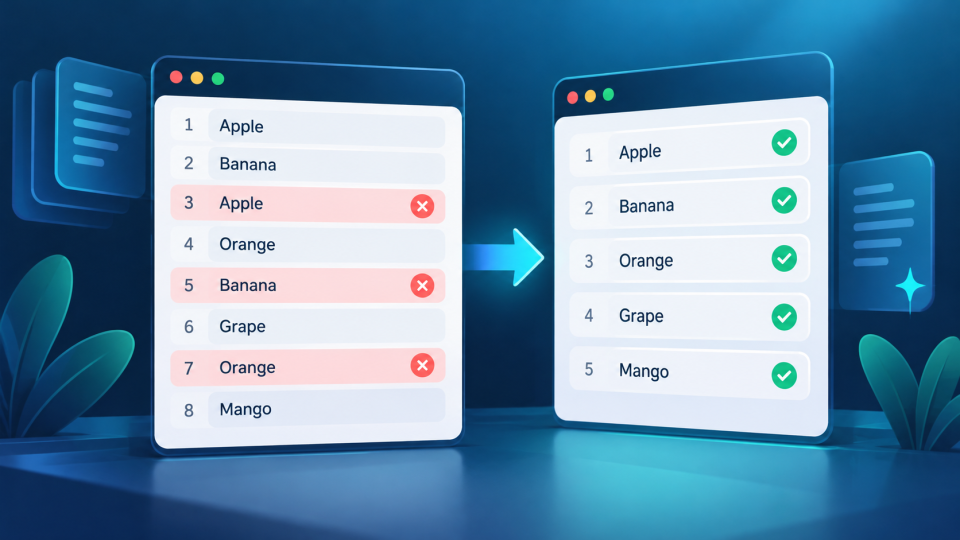
How to Format JSON Online: A Beginner-Friendly Walkthrough
Learn how to format JSON online, fix common syntax errors, choose indentation, and make API responses and configuration files easier to read.

Formatting JSON online is one of the easiest ways to turn messy, hard-to-read data into clean, organized text. Whether you're checking an API response, editing a configuration file, or learning web development, an online JSON formatter can make your work much simpler.
To format JSON online, copy your JSON data, paste it into a JSON formatter, click Format, and copy the properly indented result. The process usually takes only a few seconds, and you don't need to install software.
In this guide, you'll learn how JSON formatting works, how to format JSON step by step, how to fix common errors, and how to keep your data readable.
What Is JSON Formatting?
JSON stands for JavaScript Object Notation. It's a lightweight text format used to store and exchange structured data between applications, websites, servers, and APIs.
Although JSON originated from JavaScript, it is supported by many programming languages, including Python, PHP, Java, and C#.
JSON organizes information using objects, arrays, keys, and values.
For example, a website might store basic user information like this:
{"name":"Alex","age":25,"country":"Canada","active":true}This is valid JSON, but everything appears on one line.
After formatting, the same data looks like this:
{
  "name": "Alex",
  "age": 25,
  "country": "Canada",
  "active": true
}
The information hasn't changed. Only the whitespace, including indentation and line breaks, has been adjusted.
This process is commonly called JSON formatting, JSON beautification, or pretty-printing JSON.
Why Is JSON Formatting Important?
Small JSON objects are relatively easy to understand. However, when you work with hundreds of lines, nested arrays, or complicated API responses, unformatted JSON becomes difficult to navigate.
Proper formatting helps you:
Understand nested objects and arrays.
Identify missing or unexpected information.
Review API responses more efficiently.
Edit configuration files with greater confidence.
Share readable data with teammates.
Locate syntax mistakes more easily.
For developers, good formatting also makes debugging and code reviews less frustrating. For beginners, it provides a clearer picture of how structured data works.
How to Format JSON Online: Step-by-Step Guide
You don't need advanced programming knowledge to format JSON. A browser-based tool is enough for most everyday tasks.
Here's how to get started.
Step 1: Open an Online JSON Formatter
Start by opening a JSON formatting tool in your web browser.
You can use the FBSubNet JSON Formatter & Validator to format, validate, and minify JSON data.
The tool runs in your browser and provides separate input and output areas. It also includes indentation options, making it useful for both simple examples and more detailed JSON documents.
Step 2: Copy Your JSON Data
Find the JSON you want to format.
It might come from an API response, a .json file, an application configuration, or a data export.
Select and copy the relevant JSON text. Make sure you include the complete object or array, including its opening and closing brackets.
For example:
{"product":"Laptop","price":899,"available":true}Avoid copying surrounding documentation, error messages, or other text that isn't part of the JSON document.
Step 3: Paste JSON Into the Input Box
Paste the copied content into the formatter's input area.
A JSON validator can check whether your data follows the required syntax. FBSubNet's tool checks the input as you type and reports errors when the JSON is invalid.
If you see an error, review the highlighted problem or reported location before continuing.
Remember that formatting changes presentation. It doesn't automatically correct every syntax mistake.
Step 4: Choose Your Formatting Style
Click Format to produce the readable version.
The FBSubNet formatter offers indentation using two spaces, four spaces, or tabs.
For example, two-space indentation is compact and readable, while four-space indentation provides more visual separation between nested levels.
Neither style changes the meaning of valid JSON.
Choose a consistent indentation style, especially when working on files shared with other developers.
Step 5: Copy and Use the Formatted JSON
Review the formatted output to confirm the structure looks correct.
Then use Copy output to copy the result.
You can paste it into your code editor, documentation, configuration file, or development notes.
If you need a compact version instead, use the tool's Minify option to remove unnecessary whitespace.
That's the complete process for formatting JSON online.
Practical Examples of Online JSON Formatting
Understanding formatting becomes much easier when you work with real examples.
Let's explore two common situations.
Example 1: Formatting a Messy API Response
Imagine you're building an online shopping application.
Your API returns customer information and recent orders, but the response appears as one long line:
Unformatted JSON:
{"customer":{"id":2041,"name":"Maya Chen","active":true},"orders":[{"id":"A-103","total":49.95},{"id":"A-104","total":18.5}]}Although the data is valid, it's difficult to identify the relationship between the customer and their orders.
After formatting, the response becomes:
Formatted JSON:
{
  "customer": {
    "id": 2041,
    "name": "Maya Chen",
    "active": true
  },
  "orders": [
    {
      "id": "A-103",
      "total": 49.95
    },
    {
      "id": "A-104",
      "total": 18.5
    }
  ]
}
Now you can quickly identify three important details.
First, the customer property contains an object with customer information.
Second, the orders property contains an array of order objects.
Third, each order contains its own identifier and total.
This makes it easier to inspect a response, understand the structure, and troubleshoot problems during API integration.
Example 2: Fixing Invalid JSON in a Configuration File
Suppose you're preparing a configuration file for a small website.
You write the following:
Invalid JSON:
{
  'site': 'Travel Notes',
  "published": True,
  "topics": ["guides", "tips",]
}
This looks reasonable at first glance, but it contains several JSON syntax errors.
The property name and string value use single quotes, the Boolean value uses an uppercase letter, and the array contains a trailing comma.
A JSON validator should reject this input.
Here is the corrected version:
Valid, formatted JSON:
{
  "site": "Travel Notes",
  "published": true,
  "topics": [
    "guides",
    "tips"
  ]
}
Notice what changed:
Strings and property names now use double quotes.
Truehas been corrected totrue.The trailing comma after
"tips"has been removed.The array has been indented for readability.
Once the syntax is corrected, the formatter can display the JSON neatly.
This example demonstrates an important difference: validation identifies invalid JSON, while formatting improves the appearance of valid JSON.
Common JSON Formatting Errors and How to Fix Them
Even experienced developers occasionally make JSON syntax mistakes.
Understanding the most common ones can save considerable debugging time.
1. Using Single Quotes Instead of Double Quotes
JSON requires double quotes around property names and string values.
Incorrect:
{'name': 'Sarah'}Correct:
{"name": "Sarah"}JavaScript supports single-quoted strings, but strict JSON does not.
2. Leaving Trailing Commas
A trailing comma appears after the final property in an object or the final item in an array.
Incorrect:
{"name": "Sarah", "age": 28,}Correct:
{"name": "Sarah", "age": 28}Unlike some programming languages, standard JSON doesn't permit trailing commas.
3. Forgetting Brackets or Commas
Objects use curly braces {} and arrays use square brackets [].
Missing a closing bracket or a comma between properties makes the document invalid.
When troubleshooting, check the opening and closing brackets and verify that each property is separated correctly.
4. Using Incorrect Value Types
JSON supports strings, numbers, Booleans, null values, objects, and arrays.
However, these values must follow JSON syntax.
For example:
{
  "quantity": 5,
  "available": false,
  "discount": null
}
The words true, false, and null must be lowercase and must not be quoted when they represent their corresponding JSON values.
Also, remember that "5" is a string, while 5 is a number. Formatting cannot determine which type your application actually requires.
JSON Formatting vs. Validation vs. Minification
These three operations are closely related, but they serve different purposes.
| Operation | Purpose | Best Use |
|---|---|---|
| Formatting | Adds indentation and line breaks | Reading and reviewing JSON |
| Validation | Checks whether JSON syntax is valid | Finding syntax mistakes |
| Minification | Removes unnecessary whitespace | Producing compact JSON |
JSON formatting makes complex data easier for humans to read.
JSON validation checks whether the text follows JSON syntax rules. However, a syntactically valid document might still contain missing fields or incorrect values for a particular application.
JSON minification produces a smaller text representation by removing optional spaces and line breaks.
For example:
{
  "name": "Alex",
  "active": true
}
Can be minified to:
{"name":"Alex","active":true}Both versions represent the same data.
Use formatting when examining or editing JSON. Consider minification when compact output is more important than human readability.
Best Practices for Working With JSON Online
A few simple habits can make JSON formatting safer and more effective.
Use Consistent Indentation
Choose two or four spaces and follow the same convention throughout your project.
Consistent indentation makes changes easier to review and helps everyone working on the file understand its structure.
Validate JSON Before Using It
Don't assume readable JSON is automatically correct.
Run a syntax check before adding JSON to an application or configuration file.
Also check that required fields, expected types, and values match your application's requirements.
Be Careful With Sensitive Information
JSON sometimes contains passwords, access tokens, personal information, or private business data.
Before pasting sensitive JSON into an online service, understand how that service processes and stores your input.
FBSubNet's JSON formatter performs processing in your browser rather than sending the pasted JSON to its servers. Even so, follow your organization's data-handling policies and avoid exposing secrets unnecessarily.
Preserve the Original Data
Keep a copy of your original JSON before making manual changes.
Formatting alone shouldn't change the intended data, but editing values, deleting properties, or changing types can affect application behavior.
For important configuration files, use version control or another reliable backup method.
Check JSON After Editing
Once you've modified the formatted output, validate it again.
It's easy to accidentally remove a comma or bracket while editing.
A final check is especially useful before uploading a configuration file or sending an API request.
Important Limitations of Online JSON Formatters
Online JSON formatters are convenient, but they don't solve every JSON-related problem.
Most formatting tools require syntactically valid JSON before producing formatted output. If the input contains missing brackets, unsupported comments, or incorrect quotation marks, you'll need to fix those problems first.
Formatting also doesn't confirm that an API response contains the correct information. A document can be valid JSON while still failing an application's expected data structure.
Very large JSON documents may consume significant browser memory or make a formatting interface less responsive. For unusually large files, a desktop code editor or command-line utility may be more practical.
Finally, not every formatter handles data in exactly the same way. Some tools parse and serialize JSON, which can affect representations of certain values. Choose a tool that preserves the details important to your workflow.
Frequently Asked Questions
Can I Format JSON Online for Free?
Yes. Free online JSON formatters are available, including the FBSubNet JSON Formatter & Validator. For basic formatting, you generally only need a web browser and valid JSON input. No programming environment is required.
Does Formatting JSON Change Its Data?
Proper whitespace-only formatting doesn't change the meaning of JSON. It adds indentation and line breaks outside string values while preserving the underlying data. However, tools that also transform or rewrite values may behave differently. Always review important output before using it.
Can I Format Invalid JSON?
A strict JSON formatter cannot normally pretty-print invalid JSON as a valid document without first repairing the syntax. Use a validator to identify problems such as missing commas, incorrect quotes, or unmatched brackets. Once you've corrected the issues, format the JSON again.
What Is the Best Indentation for JSON?
Two spaces and four spaces are both common choices. Two spaces keep deeply nested documents relatively compact. Four spaces can make each nesting level easier to distinguish. The best choice depends on your team's conventions and personal preference. Consistency matters more than the exact number of spaces.
Conclusion
Learning how to format JSON online is a valuable skill for anyone working with websites, APIs, configuration files, or structured data. A good formatter turns difficult-to-read JSON into an organized document that is easier to inspect, understand, and maintain.
The key is to follow a simple process: paste your JSON, check its validity, choose an indentation style, format the output, and review it before using it. With a little practice, formatting and validating JSON will become a natural part of your development workflow.