How to Compare Two Email Drafts Before Sending
Compare two email drafts side by side before sending: spot changed dates, prices and promises with a free line-by-line diff, then run a final factual check.
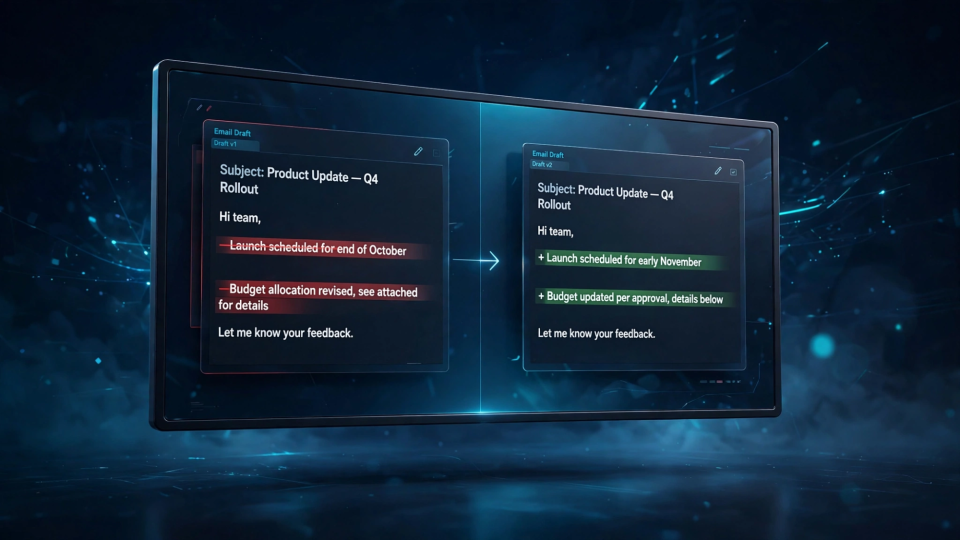
When comparing two email drafts helps
You write an email, save it as a draft, and come back later to find two versions: a colleague edited it, an AI assistant rewrote it, or you tweaked it on your phone.
A line-by-line comparison marks every addition, deletion and unchanged line, so you review each change on its own instead of re-reading the whole message and hoping nothing slipped past you.
It is most useful in a few specific situations:
- Someone else edited your draft. A manager, colleague or client revised your wording, and you need to approve the changes.
- An AI tool rewrote the email. Rewrites smooth tone well and preserve facts badly: a date, price or name can change without the rewrite looking different.
- You edited the draft in two places. You started it on your laptop and tweaked it on your phone, and now you are not sure which version has the latest wording.
- The email carries commitments. Timelines, quotes, delivery dates and refund terms are facts; if any changed between drafts, you need to know before you send.
- The email went through a review round. A reviewer asked for changes, and you want to confirm only those changes were made.
Skip it for short, casual emails where you remember the one change you made. Use it when the email matters, when someone else touched it, or when you cannot remember exactly what changed.
How to compare two email drafts side by side
The whole job is four steps, and the comparison itself takes seconds.
Step 1: Get both versions as plain text
Open the first draft and copy the body text, then do the same for the second. If the drafts live in different places — one in your email app, one in a document — copy each into a plain text file so you have both in front of you. Include the subject line as a separate pair if it changed; a single line compares cleanly on its own.
Strip out anything that is not part of the message, such as a forwarded thread or an old signature block — anything left in shows up as a change.
Step 2: Paste the original on the left and the revision on the right
Open FBSubNet's Line-by-Line Text Diff tool and paste the earlier draft into "Original text" and the later draft into "Revised text". The order matters: the original goes first so removed and added lines read in the right direction.
Everything runs in your browser; the text is never uploaded to a server. That matters for email, because drafts often contain client names, prices and personal details you should not paste into a tool that sends them somewhere.
Step 3: Run the comparison and read the result
The result marks every line three ways: unchanged lines carry two leading spaces, removed lines start with a minus sign (-), added lines with a plus sign (+). An edited line shows as a removed line followed by an added line, because the tool compares whole lines, not individual words.
One changed word flags its whole line, so read the paired lines to find the exact word — for short emails, that granularity is usually right.
The tool supports up to 180 lines per side, which covers almost any email. For a longer draft, split it into sections and compare one at a time.
Step 4: Work through the changes in order
Go through the marked lines one by one, top to bottom. For each change, decide: is it wording or factual, is it correct, and does it need a reply to whoever made it. Approve the draft change by change, not all at once — that is the entire point.
Worked example: one client email, two drafts
Here is a concrete example with fictional details. Alex, a freelance web designer, is emailing a client about a website redesign: the first draft followed the kickoff meeting, the second a call where the timeline and price changed.
The original draft:
Subject: Website redesign: timeline and next steps

Hi Sarah,

Thanks for the kickoff call yesterday. Here is where things stand:

- The new homepage will be ready by Friday, 20 November.
- The total cost for this phase is $1,800.
- We will send the first draft of the product pages on Monday.
- The old blog posts will be migrated automatically.

Let me know if you have any questions.

Best regards,
Alex
The revised draft:
Subject: Website redesign: timeline and next steps

Hi Sarah,

Thanks for the kickoff call yesterday. Here is where things stand:

- The new homepage will be ready by Friday, 27 November.
- The total cost for this phase is $2,150.
- We will send the first draft of the product pages on Wednesday.
- The old blog posts will be migrated manually over two weeks.
- Please confirm the new product photos by Thursday.

Let me know if you have any questions.

Best regards,
Alex
Paste the two bodies into the tool and the result looks like this:
  Subject: Website redesign: timeline and next steps
  Hi Sarah,
  Thanks for the kickoff call yesterday. Here is where things stand:
- - The new homepage will be ready by Friday, 20 November.
+ - The new homepage will be ready by Friday, 27 November.
- - The total cost for this phase is $1,800.
+ - The total cost for this phase is $2,150.
- - We will send the first draft of the product pages on Monday.
+ - We will send the first draft of the product pages on Wednesday.
- - The old blog posts will be migrated automatically.
+ - The old blog posts will be migrated manually over two weeks.
+ - Please confirm the new product photos by Thursday.
  Let me know if you have any questions.
  Best regards,
  Alex
Five changes, each one worth a decision:
- Date changed: 20 November to 27 November. The homepage slips a week — a fact, not a wording choice. Alex should check it against the real schedule, because the client will plan around it.
- Price changed: $1,800 to $2,150. A $350 increase. If the client agreed it on the call, fine — but a mistyped number creates a dispute. Prices are the most important thing to verify in a comparison.
- Delivery day changed: Monday to Wednesday. A small shift, but the client may have a launch tied to Monday — worth confirming, not just accepting.
- Migration method changed: automatic to manual over two weeks. This changes what the client can expect: "automatically" promised no work on their side, while "manually over two weeks" implies a slower process and possibly their involvement.
- New line added: confirm the product photos by Thursday. Additions are easy to miss when re-reading a draft. In the diff it stands out with its plus sign, and Alex can check whether Thursday is realistic before asking for it.
The greeting, closing and subject line are identical, so the diff leaves them unmarked.
Compare the wording changes that matter most
Not every change carries the same weight. Check these categories first:
Numbers, dates and names
Prices, quantities, deadlines, meeting times and names are the facts a reader acts on. A changed number is almost never a style improvement; it is a correction or a mistake, and you need to know which. Check each changed number against its source — the quote, the calendar, the contract.
Commitments and conditions
Watch for small words that change what you are promising. "We will deliver on Friday" is a commitment; "We aim to deliver on Friday" is not. "Free" and "included" are not the same thing. These edits often look like harmless polishing — the diff flags the changed line so you can stop and ask whether you meant to soften the promise.
Removed sentences
Deletions are the easiest changes to miss when reading a draft, because nothing on the page catches your eye. A removed caveat or dropped condition changes the meaning of what remains. Read every minus line and ask whether the sentence should really be gone.
Tone shifts
Sometimes the facts are untouched but the tone moved — formal to casual, direct to hedged, warm to blunt. That can be an improvement, especially after an AI rewrite. But a suddenly blunt email to a careful client may read as annoyance, so read the final draft once on its own and ask how it would land on a stranger.
Final factual review before you send
The comparison tells you what changed, not whether the final version is right. Before you send an important email, review the chosen draft on its own.
First, put the other draft away and read the final version as the recipient will see it, subject line down. Side-by-side comparison spots differences well but judges the message poorly, because your attention is split. Read the finalist alone and ask: does this do the job?
Then run through a short checklist:
- Every number and date is checked against its source. If you changed any during editing, verify them again now.
- Every name is spelled correctly and attached to the right person — the recipient, anyone mentioned, anyone copied in.
- The subject line matches the body. If the body changed during editing, the subject may now promise something the email no longer says.
- Attachments and links are the right ones. A revised draft sometimes refers to an attachment that was never added, or links to an old version of a document.
- The call to action is clear: the reader should know what you need and by when. If the comparison added a request, like the photo confirmation above, make sure its deadline is one you can stand behind.
For a long or high-stakes email, send a test copy to yourself first. Reading it in your own inbox is the closest you can get to seeing it as the recipient will.
Frequently asked questions
Does comparing drafts upload my email anywhere?
Not with a browser-based tool. FBSubNet's Line-by-Line Text Diff runs entirely in your browser, so the text never leaves your device — worth checking for any comparison tool, since drafts routinely contain names, prices and internal details.
What if my drafts are longer than the tool allows?
The tool supports up to 180 lines per side, which covers most emails. For a longer draft, split it into sections and compare one at a time, in the same order, so the comparison stays aligned.
Can I compare subject lines the same way?
Yes. Paste the two subject lines as a pair of one-line texts: the diff flags a difference, or shows them unchanged. It catches the common case where the body changed but the subject still describes the old version.
What about tracked changes in a word processor?
If both drafts exist as documents, tracked changes does the same job word by word. The browser tool is for the common case where the drafts live in an email app: no file to open, no account to create, nothing uploaded. For a deeper look at line-level versus word-level diffs, see How to Compare Two Text Versions Line by Line.
Compare first, send once
Two drafts of one email are a small problem with an outsized downside: the change you miss is usually the one that matters. A line-by-line comparison takes less than a minute and turns a vague feeling into a short list of decisions — which lines to keep, which to fix, which to question. Check the facts, read the final version on its own, then send it once.